
Settings
The Settings Module is where you configure your firm's core details, app preferences, and external integrations like Meta WhatsApp Business.
How to Navigate
- Log in to your Arthix application dashboard.
- Click on the Settings icon (the gear icon ) located at the bottom of the main left-hand sidebar.
- From the pop-out menu that appears, select General Setting.
- You will now see the Settings interface with its own inner sidebar. Select App Config under the Advance section.
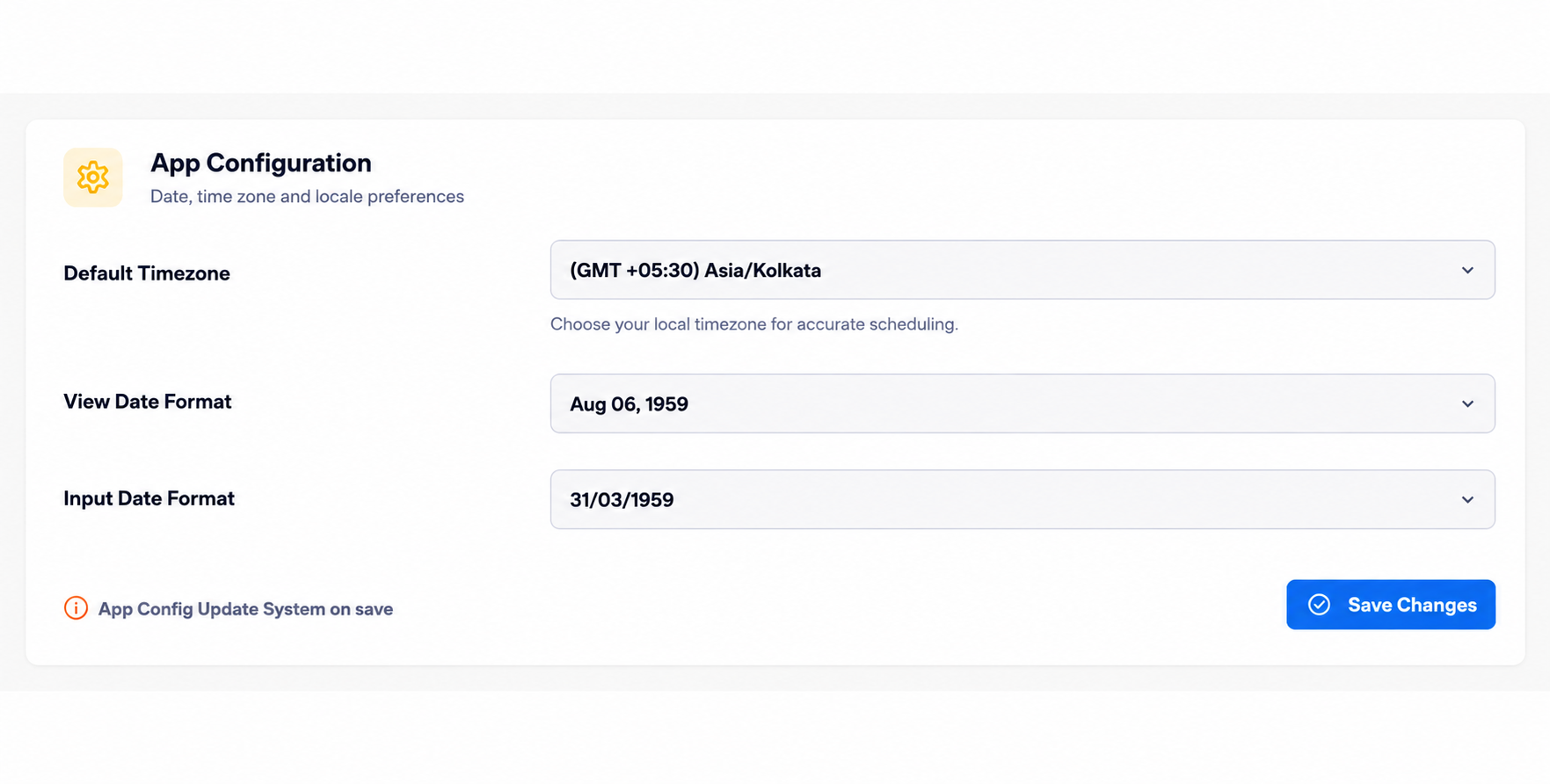
App Configuration
The App Config section allows you to set globalization and localization preferences that affect how data is displayed and processed throughout the platform.
- Default Timezone: Choose your local timezone (e.g.,
(GMT +05:30) Asia/Kolkata). This is crucial for accurate message scheduling, workflow triggers, and analytics reporting. - View Date Format: Select how dates should be displayed in tables and dashboards (e.g.,
Aug 06, 1959). - Input Date Format: Define the standard format for entering dates into forms and importing CSV data (e.g.,
31/03/1959).
System Update on Save
Changes to the App Configuration update system-wide behaviors. Saving these changes will immediately apply the new date formats and time zones across your active session and scheduled background jobs.
Changes to the App Configuration update system-wide behaviors. Saving these changes will immediately apply the new date formats and time zones across your active session and scheduled background jobs.