
Settings
The Settings Module is where you configure your firm's core details, app preferences, and external integrations like Meta WhatsApp Business.
How to Navigate
- Log in to your Arthix application dashboard.
- Click on the Settings icon (the gear icon ) located at the bottom of the main left-hand sidebar.
- From the pop-out menu that appears, select General Setting.
- You will now see the Settings interface with its own inner sidebar. Select Integrations under the External Services section.
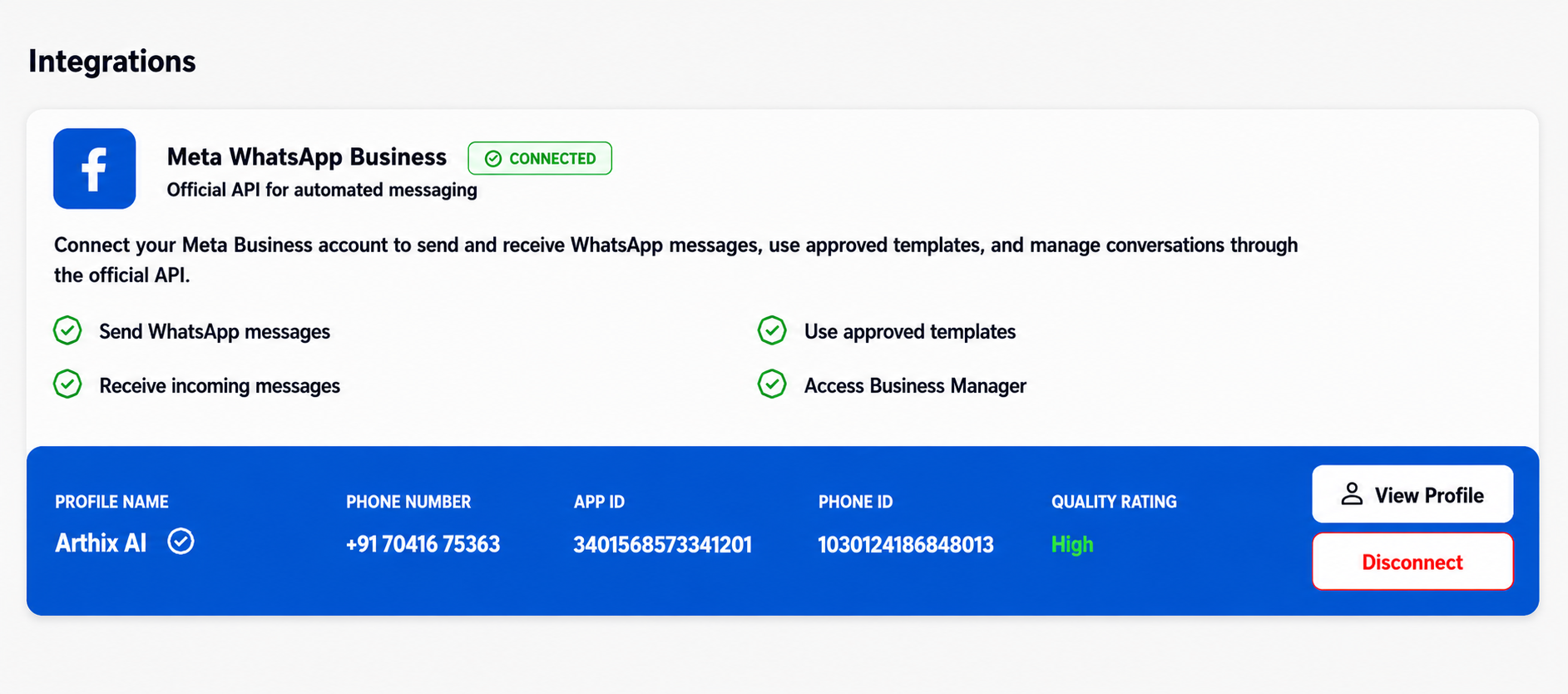
Meta WhatsApp Business
Connect your Meta Business account to send and receive WhatsApp messages, use approved templates, and manage conversations through the official API.
Connection Status
When successfully connected, you will see a green CONNECTED badge next to the integration title.
When successfully connected, you will see a green CONNECTED badge next to the integration title.
Integration Capabilities
- Send WhatsApp Messages: Send broadcast campaigns to your contacts.
- Receive Incoming Messages: Listen for replies from your customers via webhooks.
- Use Approved Templates: Sync and utilize pre-approved message templates from your Meta account.
- Access Business Manager: Directly manage your Meta Business account configurations.
Connection Details
To connect your account, you will need to provide the following API credentials from your Meta App Dashboard:
- Profile Name: Your official WhatsApp Business display name (e.g., Arthix AI).
- Phone Number: The registered WhatsApp Business phone number.
- App ID: Your unique Meta App ID.
- Phone ID: The Phone Number ID generated by WhatsApp.
- Quality Rating: Automatically synced from Meta (e.g., High, Medium, Low) which affects your messaging limits.
Disconnecting
Clicking the "Disconnect" button will immediately revoke the platform's access to send or receive WhatsApp messages. Any automated campaigns currently scheduled will fail.
Clicking the "Disconnect" button will immediately revoke the platform's access to send or receive WhatsApp messages. Any automated campaigns currently scheduled will fail.