
Balance & Billing
Learn how to navigate the Wallet interface, including viewing transaction history and recharging credits.
How to Access the Balance & Billing Interface
Before you can manage your account balance, you need to navigate to the Balance & Billing Interface dashboard.
Step 1: Log in
Log in to your account to view your main dashboard.
Step 2: Open the Wallet Dashboard
Look at the main menu on the left side of your screen. Find and click the Wallet icon to directly open the dashboard.
How to View Recharge History
Monitor every deposit, refund, and adjustment that adds credits to your account.
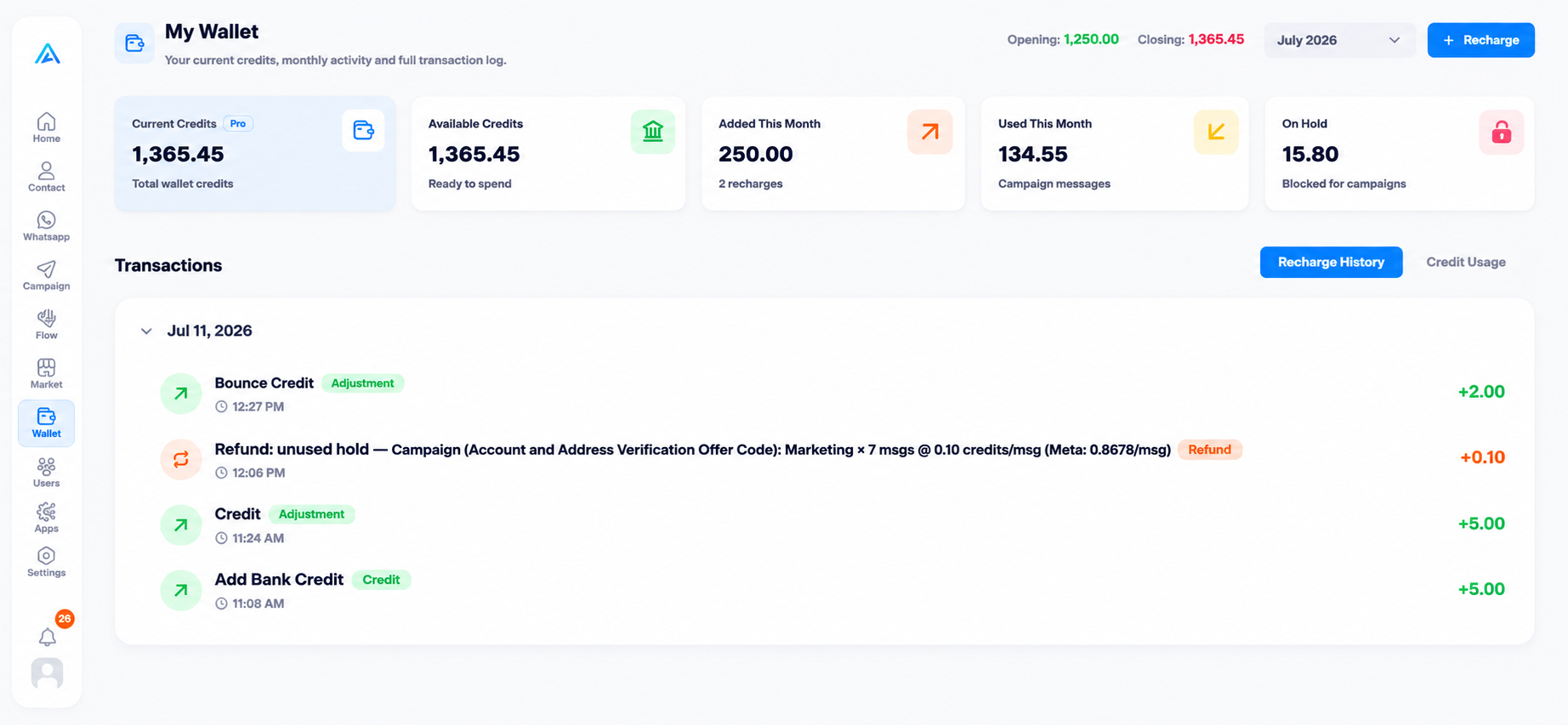
Step 1: Open the Recharge History Tab
In the Transactions section, click the Recharge History tab on the right side.
Step 2: Review Added Credits
Check the list for positive green values indicating successful recharges, refunds, or manual credit additions.
How to View Credit Usage
Monitor every deduction for automated deductions like campaigns, services, and templates.
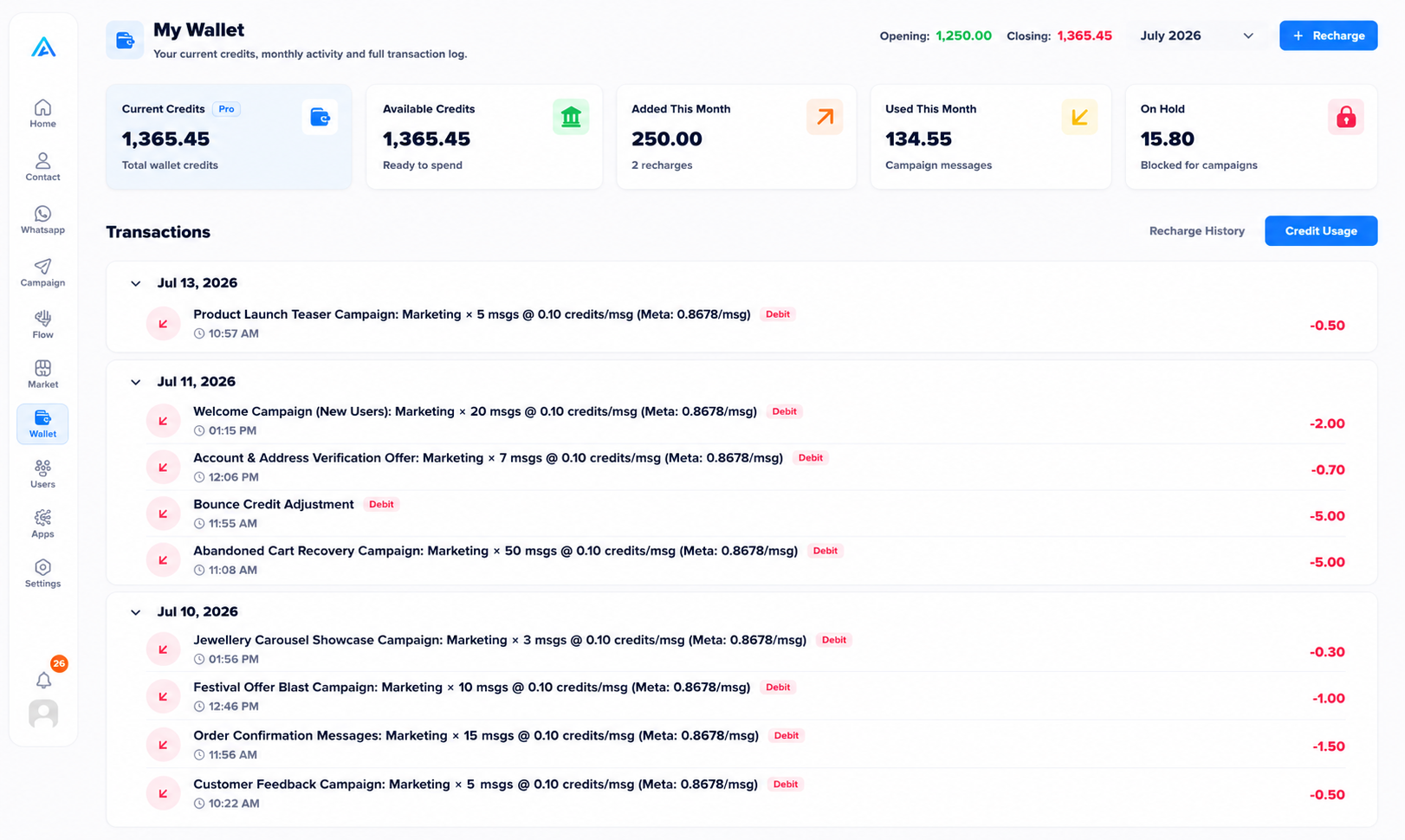
Step 1: Open the Credit Usage Tab
In the Transactions section, click the Credit Usage tab on the right side.
Step 2: Review Deductions
Check the list for negative red values indicating credits spent on marketing messages, bounce credits, or other campaign costs.
How to Recharge Credits
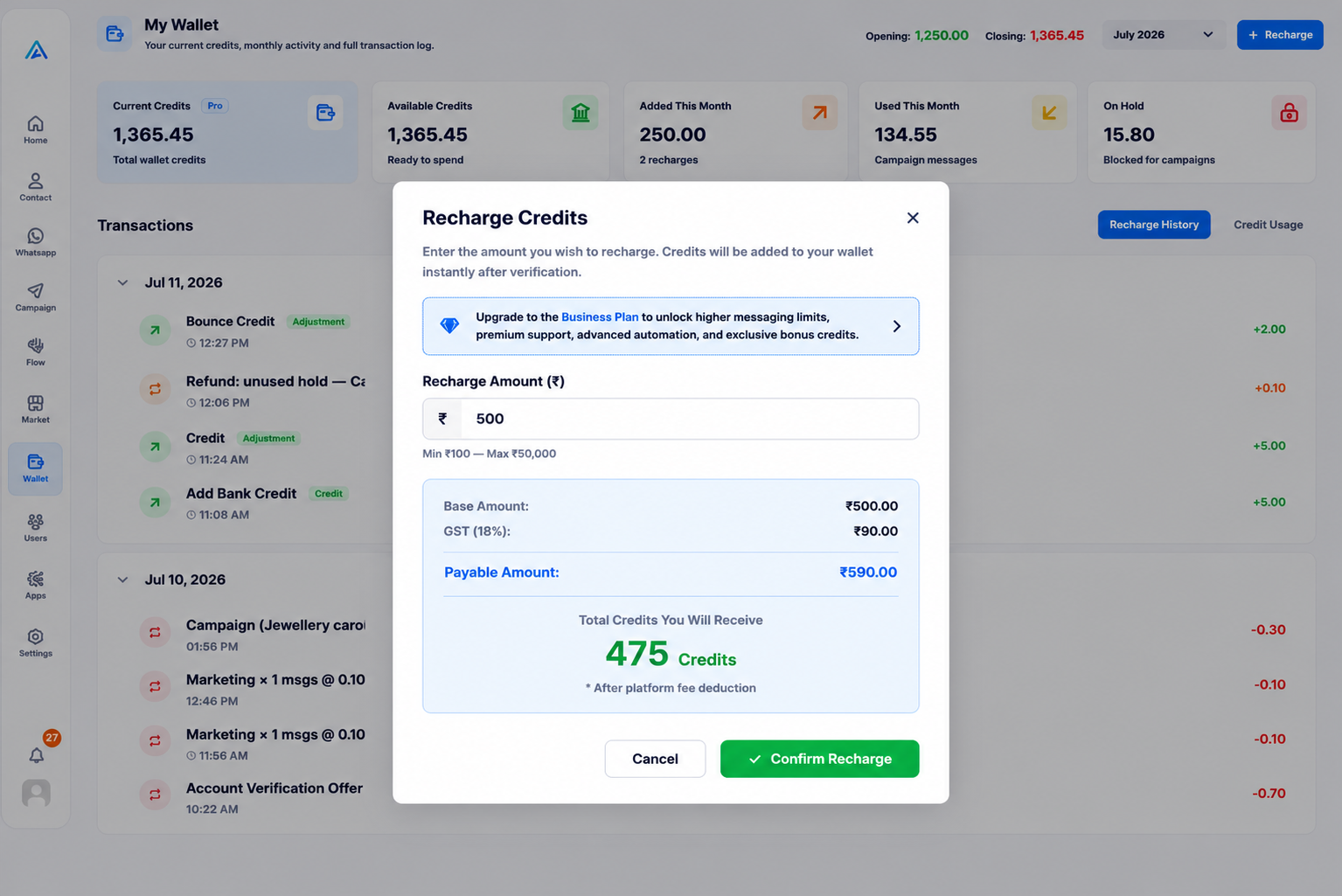
When your balance runs low, you can quickly top up your wallet via the Recharge module. It automatically calculates GST and the total credits you will receive.
Step 1: Open the Recharge Form
Click the blue + Recharge button located in the top right corner of the dashboard.
Step 2: Enter Amount
Enter your desired recharge amount in the modal. Then click Proceed.
The Wallet Module is essential for sending messages. Ensure your account is topped up to prevent any interruptions to your automated workflows or campaigns!