User Accounts
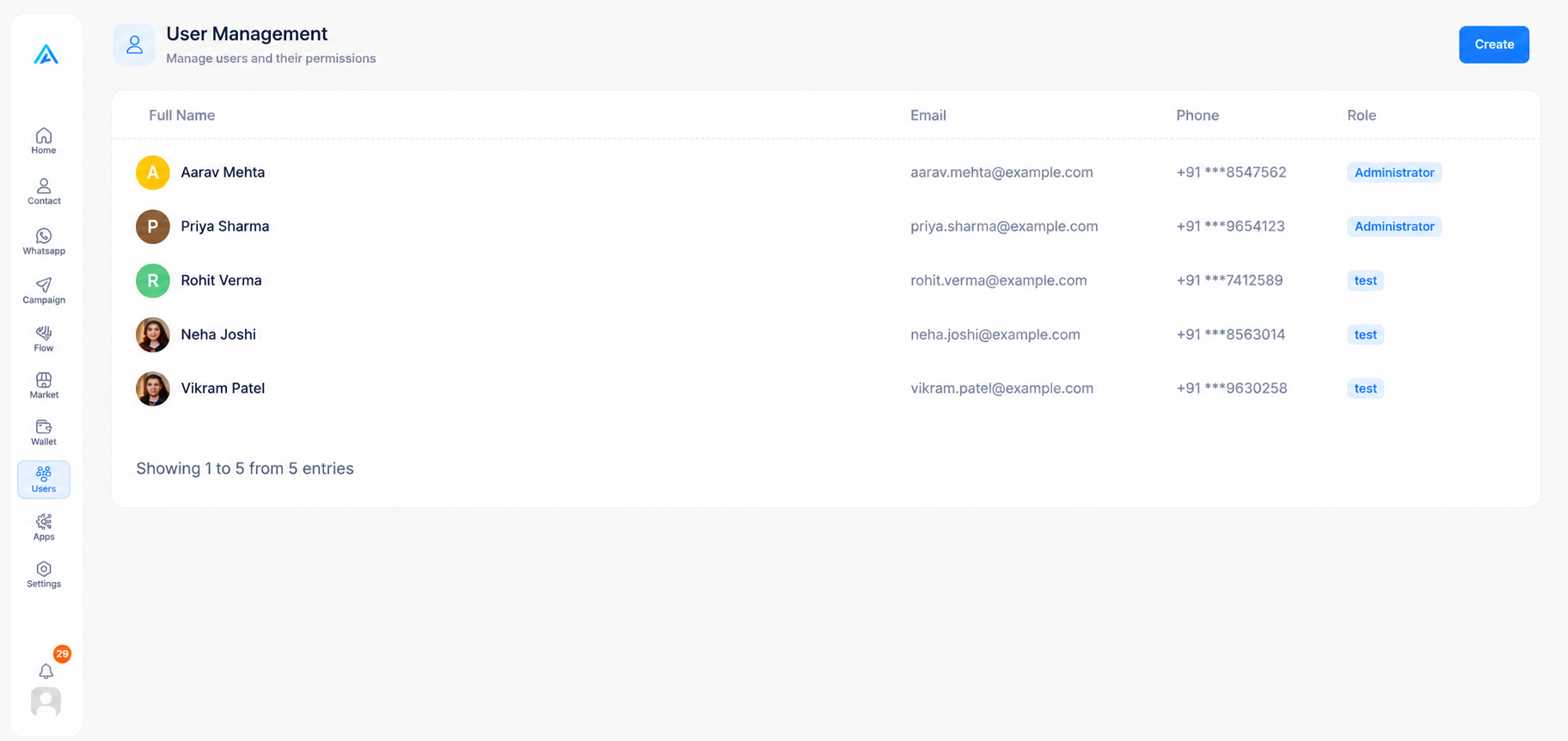
Visual guide to the Users dashboard, including the main list, profile view, and user creation form.
How to Access the User Accounts Interface
Before you can manage your team members, you need to navigate to the User Accounts Interface dashboard.
Step 1: Log in
Log in to your account to view your main dashboard.
Step 2: Open the Users Dashboard
Look at the main menu on the left side of your screen. Hover over or click the Users icon to open the Users & Roles popout menu, then select Users.
How to View the Users List
The main view displays a table of all your firm's users. You can easily see how many entries exist and paginate through them.
Step 1: Open the User Dashboard
Review the main table which lists your users' Full Name, Email, Phone, and assigned Role.
Step 2: Review Team Members
Use the pagination controls to navigate through your entire team.
How to View User Profile Details
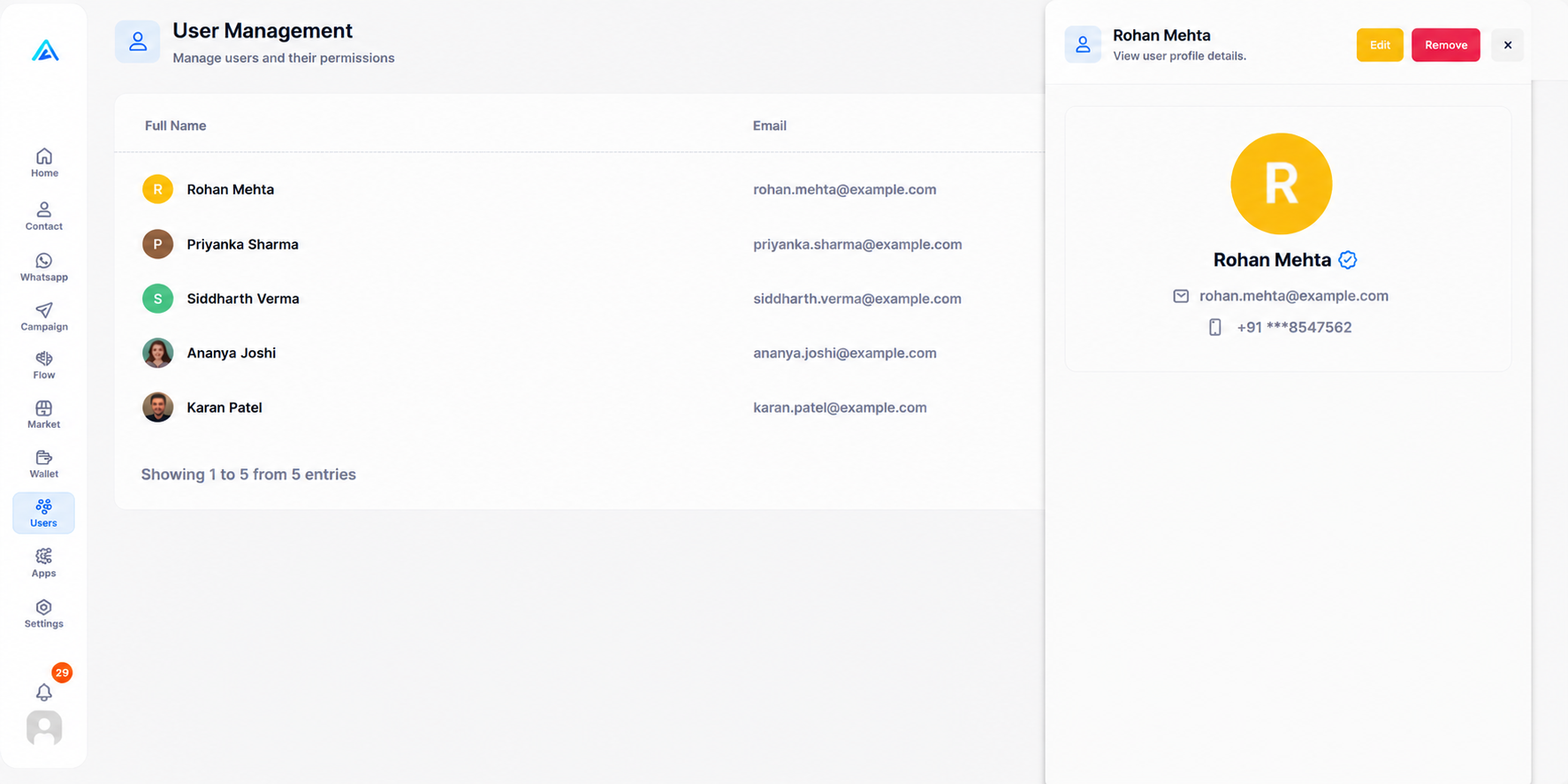
You can easily view a user's detailed profile information, verified status, and access options to edit or remove them.
Step 1: Select a User
Click anywhere on a user's row in the table.
Step 2: View Profile
A side-panel will slide out displaying their details. From here, you can click Edit or Remove.
How to Create a New User
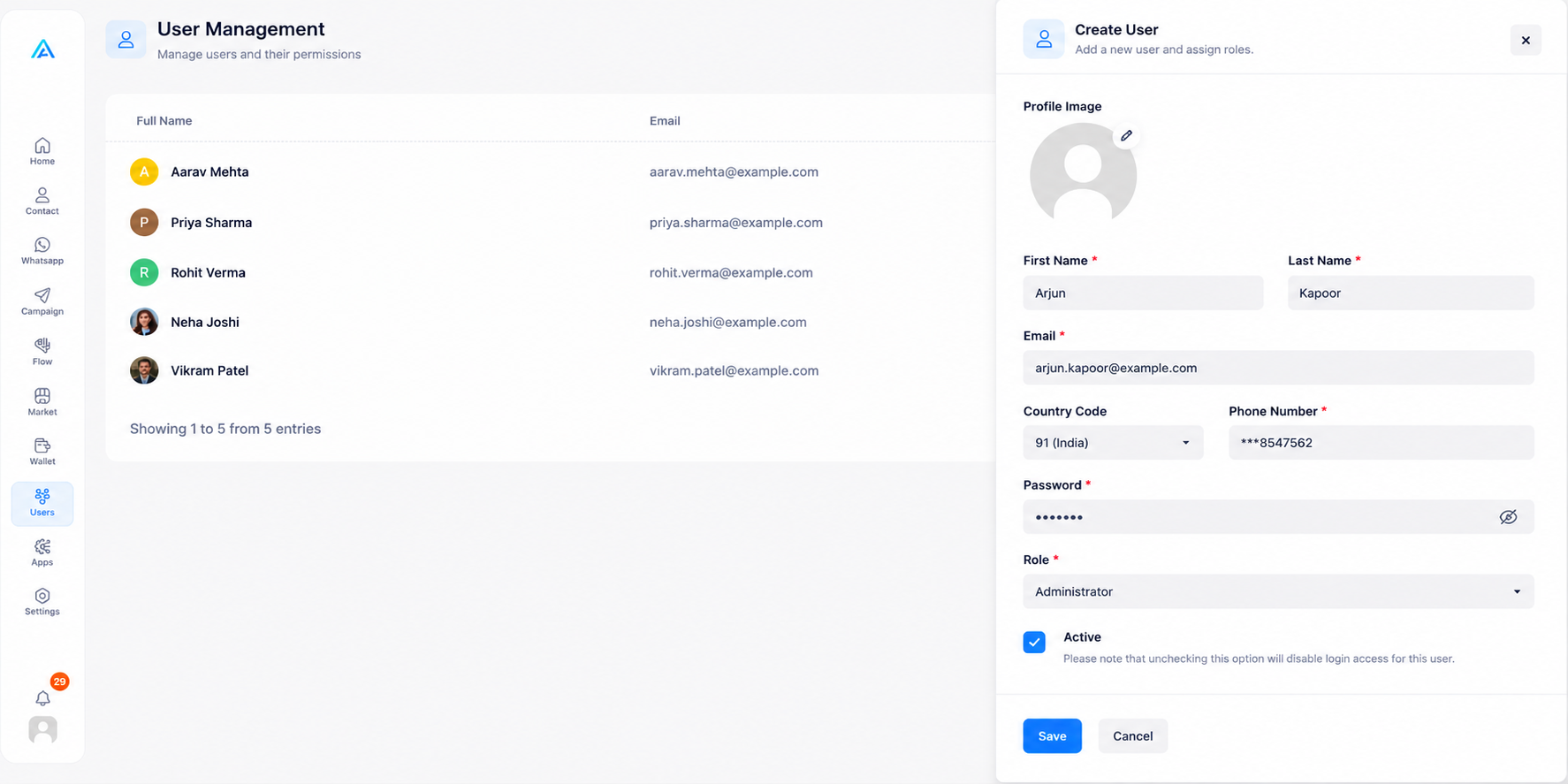
You can easily add new members to your team, assign their roles, and set their active status.
Step 1: Open the Creation Form
Click the blue Create button located in the top right corner of the Users Dashboard.
Step 2: Fill in Details
Upload a profile image, input personal details, assign a specific Role, and click Create.